Grok comes to Microsoft 365 Copilot: what admins need to check
Grok (SpaceXAI) now shows up in the Copilot model picker. Subprocessor or independent processor, data, Europe: how to enable it, scope it or block it.

In the car, on your commute or with headphones: playback continues with the screen locked.
🌐 This article was originally written in French and automatically translated. Read the original (FR)
Grok, the model from SpaceXAI (formerly xAI), joins GPT and Claude in the Microsoft 365 Copilot model picker. There are two ways to turn it on, with very different consequences: as a Microsoft subprocessor (Word, Excel and PowerPoint, Frontier program, Microsoft DPA and Product Terms apply, not in the EU, EFTA or UK), or as an independent processor (Copilot Studio and Copilot Cowork, data processed outside Microsoft under xAI’s terms). Both settings are off by default and live in the Microsoft 365 admin center > Copilot > Settings > View all. Check both, agree on a position with your DPO, and if you open Grok, scope it to a pilot security group.
After GPT and Claude, a third model provider is making its way into Copilot: Grok, built by SpaceXAI (formerly xAI). It now shows up in the model picker as Grok 4.6, right above Claude and GPT.
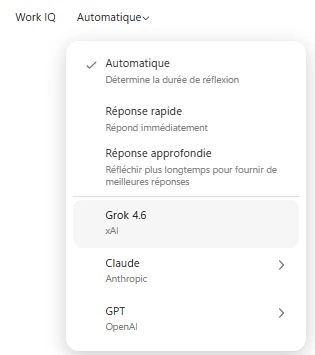
For users, it’s one more model in a list. For admins, it’s a new provider your company’s data can be sent to, and Microsoft offers two very different ways to open it up. Here is what you need to know before touching the setting.
What Microsoft announced
The timeline, according to the documentation and the message center:
- September 10, 2026: SpaceXAI is added to the Microsoft Online Services Subprocessors List.
- September 12, 2026: Microsoft announces Grok models in Copilot, through the Frontier program, in Word, Excel and PowerPoint.
- September 18, 2026: the admin setting becomes available to eligible customers (message MC1474124, “Microsoft Copilot SpaceXAI subprocessor admin setting”).
Microsoft describes this launch as a focused release to gather feedback before bringing Grok models to more Copilot experiences. The Copilot chat model picker shown above suggests that expansion has started, even though the documentation still only mentions Word, Excel and PowerPoint.
Two settings, two legal models
This is the key point. In the Microsoft 365 admin center, SpaceXAI appears in two places, and the consequences for your data are completely different.
| SpaceXAI as a Microsoft subprocessor | SpaceXAI as an independent processor | |
|---|---|---|
| Admin center section | AI providers operating as Microsoft subprocessors | AI providers operating as independent processors |
| Where Grok can be used | Copilot in Word, Excel and PowerPoint (model picker) | Copilot Studio and Copilot Cowork |
| Hosting | Under Microsoft’s contractual oversight | At SpaceXAI, outside all Microsoft-managed environments |
| Applicable terms | Microsoft Product Terms and DPA, Enterprise Data Protection, Customer Copyright Commitment (with exclusions) | xAI Enterprise Terms and DPA: Microsoft’s DPA, data residency commitments, SLAs and Customer Copyright Commitment don’t apply |
| Availability | Frontier program only, not in the EU, EFTA, UK, GCC, GCC High, DoD or sovereign clouds | Depends on the regions Microsoft opens |
| Required role | AI Administrator or Global Administrator | Global Administrator, plus accepting xAI’s terms |
| Default state | Off | Off |
The two settings are independent: if you had already opened SpaceXAI as an independent processor, your assignments are not carried over to the subprocessor setting. Conversely, blocking one doesn’t block the other.
Subprocessor exclusions
Even as a subprocessor, not everything is covered the way Microsoft-hosted models are. The documentation lists three exclusions:
- certifications are managed by SpaceXAI itself, on its trust portal;
- the models are not FedRAMP High authorized;
- they are excluded from in-country processing commitments.
Message MC1474124 also states that SOC 1 Type II, PCI, FedRAMP and HITRUST certifications aren’t currently available for SpaceXAI. If your compliance depends on one of them, the decision is quickly made.
Enable Grok for a pilot group
If you decide to open it, do it for a small group rather than the whole tenant.
- In the Microsoft 365 admin center, go to Copilot > Settings > View all.
- Select AI providers operating as Microsoft subprocessors.
- Under Available subprocessors for your organization, choose SpaceXAI.
- Under Choose which users can access SpaceXAI operated models, select specific users and groups (a dedicated Microsoft Entra ID security group, for example), then Save.
Assignments apply at the provider level across Copilot experiences: only group members can use features and agents that rely on Grok. Allow a few hours for the model to show up for users.
For the independent processor mode (Copilot Studio, Copilot Cowork), the path is the same but under AI providers operating as independent processors, with xAI’s terms to accept. For Copilot Studio, there’s a second lock in the Power Platform admin center: allowing external large language models for generative responses.
Block Grok
To close access, or to check that it’s closed:
- Copilot > Settings > View all.
- Open AI providers operating as Microsoft subprocessors, then SpaceXAI, and choose No users. Save.
- Do the same under AI providers operating as independent processors > SpaceXAI.
While you’re there, review every provider listed on both pages. Microsoft says so itself: some AI subprocessors are enabled by default, and Grok is just the latest arrival. Better to have a written position than one imposed on you.
My recommendation
- Check both settings today, even if you think you’re not affected: they’re off by default, but a colleague may have opened the independent processor mode for a Copilot Studio test.
- Agree on a position with your DPO: SpaceXAI is a new subprocessor, with certifications and in-country processing that aren’t on par with Microsoft-hosted models. The independent processor mode is an outright data transfer to a third party under its own terms.
- If you open Grok, scope it to a pilot security group, preferably in subprocessor mode, and on non-sensitive data.
- Warn your helpdesk and users: a new name in the picker raises questions, and some will want to know whether “their data goes to Grok”.
- Keep an eye on the message center: Microsoft explicitly plans to bring Grok to more Copilot experiences, and availability in Europe may change.
For the rest of the new models and autumn updates, see my recap of what’s new in Microsoft Copilot in September 2026. And if it’s Claude you want to manage on mobile, I’ve covered deploying Claude for Intune on iPhone and iPad.
Key takeaways
- Grok is offered by SpaceXAI, the company that builds the model (the picker still shows “xAI”).
- Two separate settings: “AI providers operating as Microsoft subprocessors” and “AI providers operating as independent processors”. They don’t share user assignments.
- As a subprocessor, Microsoft’s DPA, Product Terms, Enterprise Data Protection and Customer Copyright Commitment apply, with exclusions (certifications, in-country processing).
- As an independent processor, data leaves Microsoft’s environment and falls under xAI’s terms and DPA: Microsoft’s DPA, data residency commitments and SLAs don’t apply.
- According to the documentation, the subprocessor option is limited to the Frontier program and excludes the EU, EFTA, the UK and government clouds.
- Both options are off by default: if you do nothing, your users can’t use Grok.
Frequently asked questions
Is Grok enabled by default in Microsoft 365 Copilot?
No. Both SpaceXAI settings (subprocessor and independent processor) are off by default in the Microsoft 365 admin center. A user only sees Grok if an admin has enabled it and granted them access.
Where do I enable or disable Grok in Copilot?
In the Microsoft 365 admin center: Copilot > Settings > View all, then “AI providers operating as Microsoft subprocessors” (or “AI providers operating as independent processors”), SpaceXAI. Choose All users, specific users and groups, or No users, then save.
What is the difference between subprocessor and independent processor?
As a subprocessor, SpaceXAI works on Microsoft’s behalf: Microsoft’s DPA and Product Terms apply (with exclusions) and the model is available in Word, Excel and PowerPoint. As an independent processor, the models are hosted by SpaceXAI outside Microsoft, for Copilot Studio and Copilot Cowork, and use is governed by xAI’s enterprise terms and DPA.
Can Grok in Copilot be used in Europe?
According to Microsoft’s documentation, updated on November 4, 2026, the subprocessor option isn’t offered to customers in the EU, EFTA and UK during the preview. The rollout moves fast: check what your own admin center shows.
Who can change these settings?
The subprocessor setting requires the AI Administrator or Global Administrator role. The independent processor setting requires the Global Administrator role and accepting xAI’s terms.
Are my existing SpaceXAI settings carried over?
No. If you had enabled SpaceXAI as an independent processor, those assignments aren’t carried over to the new subprocessor setting: you need to enable it and assign users separately.
Sources and documentation
- Microsoft Learn: SpaceXAI as a subprocessor in Microsoft Online Services
- Microsoft Learn: Connect to SpaceXAI models (as an independent processor)
- Microsoft Learn: Overview of AI Subprocessors
- Microsoft Copilot Blog: Expanding model choice in Copilot with Grok
- MC1474124: Microsoft Copilot SpaceXAI subprocessor admin setting
Comments
No comments yet: be the first to share your thoughts!